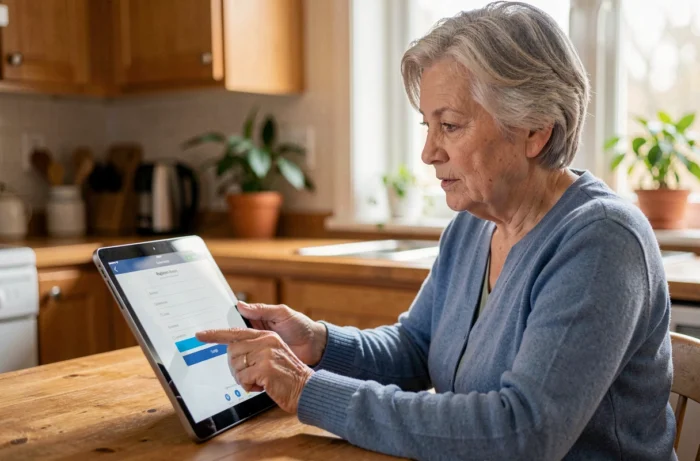
Quintonic is a social dating and activity site aimed at those over 50. It does not offer a mobile app to download from the usual stores. All usage is done through the tablet’s internet browser, which often confuses people discovering the platform for the first time.
Quintonic on tablet: how the browser changes registration
On a computer, the “Sign Up” button located at the top right of the homepage is clearly visible. On a tablet, the display adapts to the screen size and this button may be found in a dropdown menu symbolized by three horizontal lines. Spotting this menu before starting prevents searching for several minutes.
The registration form requires filling out several mandatory fields, then confirming by clicking “Let’s go”. A confirmation email is then sent to the provided address. Activating the account via this email is mandatory to access the site’s features. Without this step, the profile remains blocked.
On tablets, the confirmation email sometimes lands in the spam folder, especially on default-configured email accounts. Checking this folder is the first reflex to have if nothing appears in the inbox after a few minutes. A complete guide detailing the registration and login to Quintonic my account can help resolve the most common issues at this stage.

Quintonic login and session loss: the real problem on tablet
The most reported difficulty by beginners is not registration, but daily login. Quintonic operates in the browser, and the tablet does not always remember the login credentials from one day to the next. Each new opening of the browser may require re-entering the email address and password.
This behavior comes from the browser settings, not Quintonic. Two settings deserve to be checked:
- The “Save passwords” option must be enabled in the settings of Chrome (Android tablet) or Safari (iPad). Without this, the browser will never offer to remember Quintonic credentials.
- Automatic cookie deletion must be disabled. Some tablets erase browsing data upon closing, which effectively logs the user out of all sites each time.
- The “private browsing” mode does not retain any session data. Ensuring that open tabs are not in private mode (often indicated by a dark background or a mask icon) avoids many frustrations.
Once these settings are adjusted, the Quintonic session remains active for several days without manual reconnection.
Forgot password on tablet: the procedure to know
Password reset is done through a link sent by email. On a tablet, the link opens in the default browser, which is not always the one used for Quintonic. If the new password is created in Safari but the user usually browses in Chrome (or vice versa), the automatically saved password will not be available in the correct browser.
Choosing a single browser for all operations related to Quintonic simplifies credential management.
Quintonic shortcut on the home screen: a false download that changes everything
Since there is no dedicated app, creating a shortcut on the tablet’s home screen mimics the behavior of a traditional app. The icon appears alongside others, and a simple tap opens the Quintonic page directly.
The method differs depending on the system:
- On Android with Chrome: open Quintonic in the browser, tap the three dots in the top right, then select “Add to home screen”.
- On iPad with Safari: open Quintonic, tap the share icon (square with an arrow), then choose “Add to home screen”.
- On both systems, the shortcut does not automatically sync site updates, but it retains the direct link to the login page.
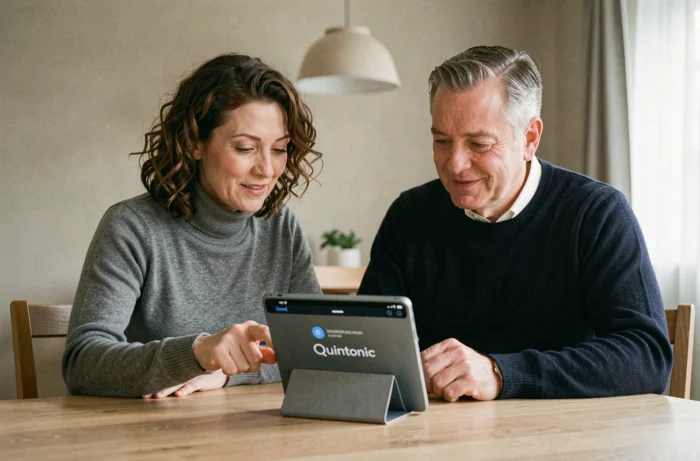
This shortcut provides a concrete advantage for beginners: it avoids having to retype the site address or go through a search engine each time. Typing errors in the URL, common on a virtual touch keyboard, become a thing of the past.
Quintonic account security on a shared tablet
In some households or care facilities, the tablet is used by multiple people. The question of logging out then arises differently than on a personal device.
Quintonic does not offer a PIN code or fingerprint locking system specific to the platform. The security of the account relies entirely on the browser and the tablet. A user who does not log out leaves their profile accessible to anyone opening the browser.
In a shared context, manually logging out after each session remains the only reliable precaution. The logout button on Quintonic is found in the profile menu, accessible from the icon at the top of the page. On a tablet, this menu may require scrolling up if the navigation bar has automatically hidden.
Tablets in nursing homes and dedicated equipment
The recent trend in medical-social establishments is towards the installation of simplified interactive tablets, designed for the social use of residents. These devices, like those deployed in certain nursing homes of the VYV3 group, aim to enrich the daily lives of elderly people through video conferencing and access to community platforms. Quintonic fits into this dynamic by directing its content towards the digital support of those over 50.
Field feedback varies on the actual ease of use of these devices by people unfamiliar with digital technology, but access via browser (without app installation) constitutes an advantage in this type of supervised environment.
Whether the tablet is personal or provided in a communal setting, the steps remain the same: open the browser, access Quintonic, and log in. The complexity never comes from the site itself, but from the tablet settings surrounding its use.