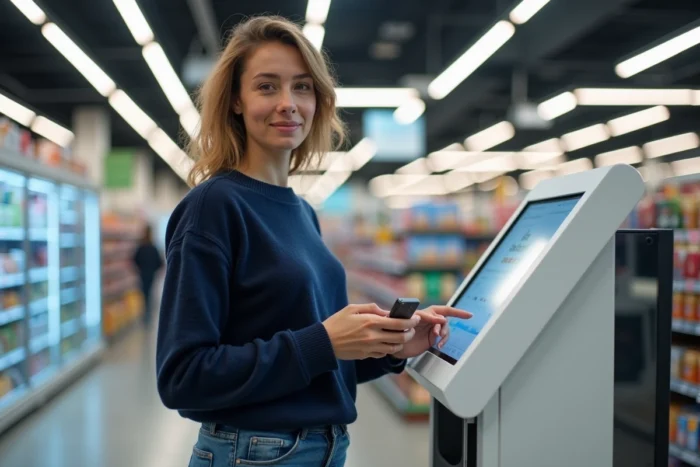
Printing a document at Leclerc is no longer limited to the photo corner or the stationery aisle. For several years now, many hypermarkets in the network have installed self-service kiosks that allow for standard printing without going through a sales assistant. However, the service is still poorly referenced on the official website of the brand, and the conditions vary from one store to another.
Leclerc kiosk services: equipment still uneven across stores
The principle relies on autonomous kiosks, often referred to as “kiosk services,” located near the customer service point. The customer transfers their file (USB stick, sometimes Bluetooth connection or QR code) and starts the printing directly on site. The PDF format remains the most reliable to avoid formatting issues.
Not all Leclerc stores have these kiosks. Large hypermarkets in urban areas are better equipped than city center supermarkets or drive-thrus. Before heading out, a call to the customer service point of the targeted store remains the safest method to confirm the availability of the service.
The staff present at the customer service can also assist in case of technical difficulties. Some stores even offer direct help for customers who are not familiar with digital interfaces, making these kiosks a local tool as well as a printing service. To better understand the operation and associated prices, resources detail the Leclerc document printing prices according to configurations.
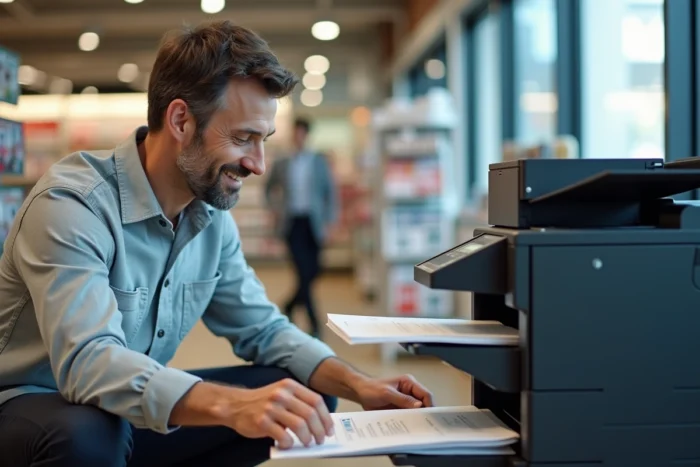
Administrative documents and CVs: concrete use cases for in-store printing
The classic image of printing at Leclerc remains the holiday photo. The reality on the ground is different. A significant portion of users come to print administrative documents: housing files, proofs for Pôle emploi, Parcoursup forms, CVs.
This audience often does not have a printer at home. The cost of a personal device, combined with that of ink cartridges, far exceeds the budget for a one-time print in-store. The Leclerc kiosk replaces the home printer for occasional needs.
Prepare your file before heading out
The main source of frustration reported by users concerns file compatibility. A Word document may lose its formatting on the kiosk if the fonts are not embedded. Converting to PDF before leaving eliminates this risk.
Also check the file size. Kiosks generally accept files of several megabytes, but a PDF containing uncompressed high-resolution images may slow down processing or even block printing. Using a free PDF compression tool (available online) takes less than a minute.
- Save your document in PDF format on a clean USB stick, without nested folders that complicate navigation on the kiosk.
- Check the margins: in-store printers often apply a technical margin of a few millimeters, which can truncate a document designed edge-to-edge.
- Prepare a backup file on your smartphone, as some kiosks allow transfer from a mobile device.
Print quality and types of paper available in Leclerc stores
Kiosk printers are not professional printers. The quality obtained is perfectly suitable for a CV, a form, or a letter. For high-definition photo output or a marketing document with solid colors, the result will be acceptable but will not match that of a specialized printer.
The standard paper offered at the kiosks is generally classic white paper, with a sufficiently dense weight for everyday use. Some stores also have photo paper for prints via the dedicated photo service, but this circuit is separate from the administrative kiosks.
Black and white or color: the price difference to know
Printing in black and white is significantly cheaper than in color. For a CV or a letter, black and white is sufficient in the vast majority of cases. Reserve color for documents that require it (scanned color ID, visuals) to control expenses.
The exact prices vary from store to store, with each Leclerc center being managed independently. Field reports differ on this point: some customers report very competitive prices per page, while others mention prices close to those charged in tobacco shops. No unified national pricing scale is published by the brand.
Leclerc Ticketing e-tickets: print your tickets without a personal printer
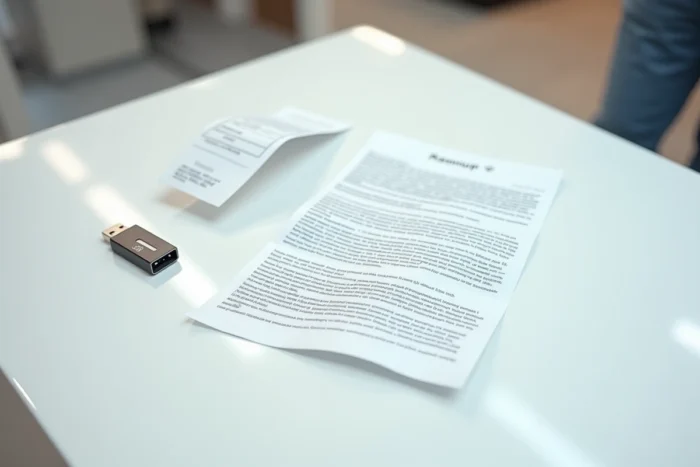
A lesser-known use case concerns e-tickets purchased via Leclerc Ticketing. The official help specifies that e-tickets are sent as a PDF attachment to the confirmation email after payment and order validation.
A customer without a printer can therefore retrieve this PDF on a USB stick or on their phone, then print it directly at a kiosk in the store. The operation takes a few minutes and avoids the hassle of finding another printing point the day before an event.
Limitations to anticipate
The PDF of an e-ticket often contains a barcode or QR code. When printing, ensure that the resolution is sufficient for the code to remain readable by the entry scanner. Printing in standard quality rather than draft avoids unpleasant surprises at the entrance to the venue.
- Download the PDF as soon as you receive the confirmation email, without waiting until the last moment.
- Check that the barcode or QR code appears clearly in the preview before printing.
- In case of doubt, also keep the digital version on your phone as a backup solution.
Printing documents at Leclerc meets a need for proximity that neither expensive home printers nor online services with delivery cover as simply. The availability of kiosks remains the main obstacle: as long as the brand does not display a clear map of its equipment, the reflex to call the store before heading out remains the most reliable precaution.